Before your start date, your employer will send you a warm welcome and outline the tasks you need to complete for a successful first day. The email will look like this:
Select Start onboarding to access your personalized onboarding website and view your tasks. You can access the onboarding website until HR publishes your profile, but it is recommended to finish all tasks before your start date.
Desktop view:
Mobile view:
Complete profile details
Once you select Complete information, you will be directed to a form where you can provide your employee profile information. The profile template enables you to upload a picture and fill out fields in each section.
Make sure you fill out all the mandatory fields (they will be marked with a red asterisk). On the right side, you can see your progress in filling in mandatory fields.
Once you are done, select Submit to save your profile information.
To complete your profile details from your mobile device:
- Open the onboarding website in your mobile browser and select Complete information.
- Fill in the fields in each section. You can also upload a profile picture by tapping the photo icon.
- Make sure all mandatory fields (marked with a red asterisk) are completed. Scroll down to review your progress.
- Select Submit to save your profile information.
Sign documents
Documents that require your signature or need some details before they are signed by others will appear in your tasks list on your onboarding website.
Pending:
These documents need to be signed by others in your company before you can sign them. Once they are ready for signature you will be informed via email.
Details needed:
These documents require some additional details from you before they are signed by others in your company. Select Provide details, fill in the required information, and select Done. The documents will remain pending until they are signed by your company stakeholders.
Ready to sign:
These documents are waiting for your signature:
- Select Review and sign.
- If any information is required before you sign the document, you will receive a prompt to add it at this step.
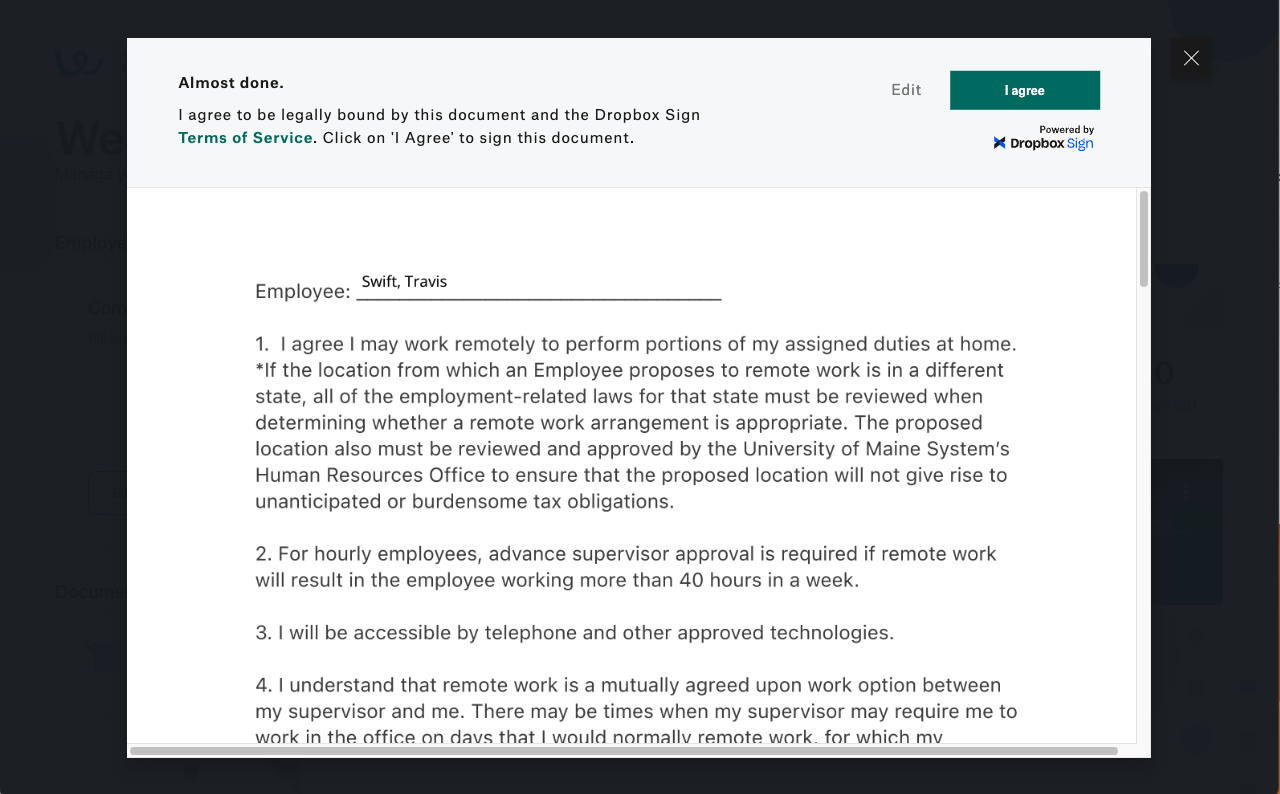
- Once the document opens, select Get started to review and sign it. You may be requested to fill in some information.
- Click on 'I agree' to sign the document.
Documents that require your signature appear in the tasks list of your onboarding website. Open the onboarding website in your mobile browser to access them.
For the ready-to-sign documents:
- Select Review and sign.
- If any information is required before you sign the document, you will receive a prompt to add it at this step.
- Once the document opens, select Get started to review and sign it. You may be requested to fill in some information.
- Click on 'I agree' to sign the document.
FAQs
- Why are my tasks appearing as disabled?
After your profile is published, all your tasks will be turned off except for viewing signed documents.
If you haven't finished all your onboarding tasks on time, contact your HR contact for assistance on how to complete them through your employee profile in Workable.