Best for: Aptitude, personality, skills, and emotional intelligence assessments
Features: Send assessments and receive results back in Workable
Support: Help Center, Au.customersupport@criteriacorp.com, AUS: 1300 137 937
Criteria Australia helps organizations make evidence-based talent decisions that reduce bias and drive outcomes via a comprehensive suite of validated assessments and decision-making tools that highlight the potential in every job candidate.
When you integrate Workable with Criteria, you'll be able to send Criteria tests directly from the designated stage in the Workable recruiting pipeline and receive the results on candidate profiles.
Setting up the integration
You’ll need to request an API key from your dedicated Criteria Account Manager. This will be a long string of numbers and letters. When you receive it, copy it to your clipboard. To enable Criteria Australia, you need to email partners@workable.com asking for the 'Criteria Australia' assessment provider to be enabled on your account. Workable will remove 'Criteria' (which is the USA connector) from the Assessment Providers list and display 'Criteria Australia' instead.
With the API key in hand, sign in to Workable as a Super Admin:
- Click your profile icon in the upper right, click on Settings, and navigate to Integrations > Apps.
- Locate Criteria in the list of assessment providers integrations and click on it.
- Add your API key to the field that appears.
- Click Update settings.
That's it! The connection will be complete, and you can start sending assessment tests.
You can add Criteria assessments to relevant pipeline stages in the Workflow tab during the job creation process. When you send an assessment, you can view the results directly in Workable. For more details, you can also download the report as a file or view it in your Criteria account.
Additional integration settings
Nominate a user (optional)
If you created additional status for Criteria to move the candidates in the pipeline, you must provide a user's name to Criteria. This user will be logged as the user who applied the stage changes to the candidates.
The provided user's name will be shown in the timeline whenever the integration changes the stage of the candidate in Workable.
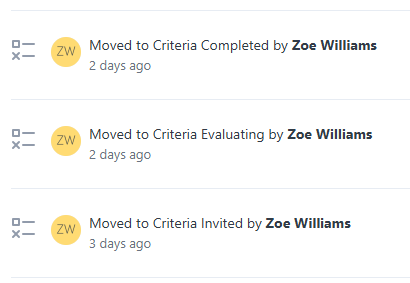
You may want to create a dedicated Criteria Integration user in your Workable account to avoid confusion, or you may just choose a member of the TA team. The integration will stop working if the chosen user is no longer active in Workable. If this happens, Criteria will reach out for a new user.
After you identify the user to use for this purpose, you will need to provide their name to Criteria.
Create custom fields in Workable (optional)
It is possible for Criteria to save specific score fields into custom fields in Workable.
They may be used to filter candidates by these values and are also available in reporting.
To add custom fields in Workable, please follow this useful guide.
While creating your custom fields, you may select one of the following options:
- Custom field title - enter a descriptive name to show for this field
- Field type - use table below to determine the type to use based on the data that will be shown e.g. Numeric for numbers and Short text for strings. You cannot change the field type so check you have chosen the correct value before saving, Criteria can assist with this.
- Provider: this should be set to User as the integration will be populating it.
- Visible to: choose the users who should be able to see this field. If you want to hide certain scores from users, you may choose a higher level for that custom field to restrict access.
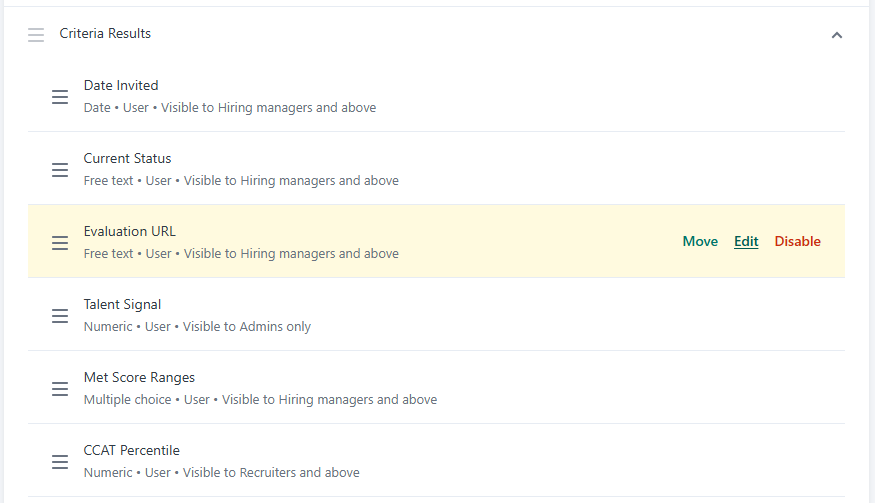
The following Criteria fields can be mapped to custom fields in your Workable integration. Choose which field(s) you would like to use.
| Description | Data type for custom field |
|---|---|
|
Current testing status Recommended for customers using VI to see when the candidate has completed. E.g. Invited, In Progress, Evaluation In Progress - 0 of 2 Completed, Evaluation In Progress - 1 of 2 Completed, Complete |
Short text |
| Date candidate invited for testing | Date, or Short text |
| Date candidate completed testing | Date, or Short text |
| Talent Signal | Numeric |
|
Met All Score Ranges Possible values: Yes, No |
Short text, or Dropdown, or Multiple choice |
|
Score fields (per test) There are fields available for each test. Usually, Percentile is the main one, but it will differ for each test. Refer to the 2 “Score Fields” sections in the Criteria REST API document to see the fields that are able to be mapped for Assessments and Structured Interviewing. The data type mentioned in the API doc will match the data type you should use in Workable, with the exception of Invalid fields. |
If the value is always a number, use “Number”. If the value is always text or may sometimes contain text, use “Short text”. If there are a limited subset of values available, it could be added as “Single select”. Criteria can provide all the possible values for you to add. Examples: |
|
Proctoring overall result Possible values: Pass, Flag, Fail |
Short text, or Dropdown, or Multiple choice |
|
Link to score report Recommended for VI+A in the same package to give the users access to the Interim report with assessment results prior to the completion of the evaluations. |
URL |
|
Link to Personality report Tests: CPI, CSAP, SalesAP, EPP, Illustrait, WAA If a candidate has completed multiple of these tests, the report will be for the first test found from this list. |
URL |
|
Link to Evaluator URL for Video Interviewing Score Report URL is recommended for VI or VI+A packages to better explain the “Evaluation in Progress” situation. Evaluator URL could be added as a 2nd field to give evaluators a direct link. |
URL |
It is important to choose the right data type to allow effective filtering in Workable.
If the data type of the custom field is “Numeric” Workable will allow you to enter a MIN and MAX value to search on a range of numbers. If the score field is set up as a “Short text” field you will only be able to filter on 1 score value at a time.
If the “Numeric” data type is used on a field that may sometimes show text, the custom field will fail to be updated in Workable when Criteria tries to send text to that field. This is mainly an issue with EPP Percent Match when no Job Family is available to generate a score.
Create API access token (optional)
If you have chosen to implement any of the optional features - status change or custom fields - you will need to create an API access token in Workable for Criteria to have access to perform these updates. This step may be skipped if you do not wish to use these additional features.
You can use this guide for generating the token. In the API scopes section, you will need to tick the below scopes:
- r_candidates (to read candidate info to get the candidate ID)
- r_jobs (to read job info to check the custom field and status values defined for the jobs)
- w_candidates (to write candidate info e.g. to change status and add custom field data)
The new access token will be displayed. Use the copy icon to copy the token value. Save the token somewhere safe for future reference, and get it ready to send to Criteria.
Provide optional feature information to Criteria
If you are using any optional features, you will need to provide the information to Criteria to complete the setup in your integration.
API access token |
When: Always Provide API Access Token to Criteria |
Status Values |
When: If using Status Change feature Provide Criteria with the name of a Job that uses the Recruiting Pipeline that contains the Criteria status values. Criteria will grab the details of the statuses from that Workable Job. If the status names are not self-explanatory, advise Criteria which status should be used for each purpose - Invited, Evaluating, Completed, Completed + In Range. |
Nominated User |
When: If using Status Change feature Provide Criteria with the full Name of the User you have chosen. Criteria will look up their ID in Workable to use in the integration. |
Custom Fields |
When: If using Custom Field feature Provide Criteria with the names of the custom field and specify what Criteria score should be added into the custom field. e.g. 'Status' custom field should show the Current Criteria Status |
Using the integration
You can assign Criteria assessments to specific stages in your hiring pipeline. Upon selecting Criteria from the Assessment provider's selection in the stage setup, you will be able to select the appropriate package.
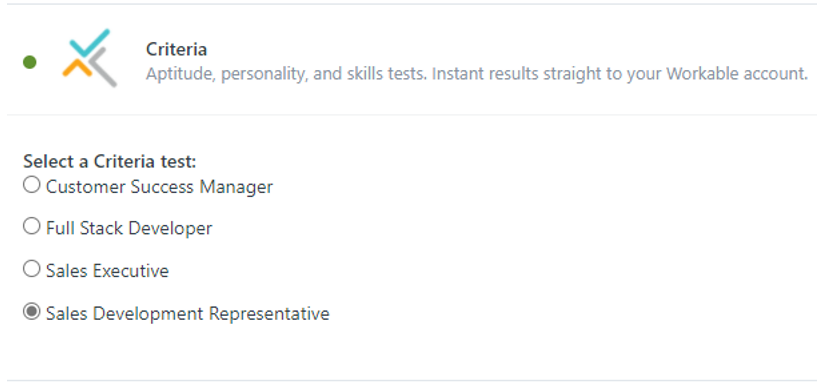
Send assessments to candidates when they reach a relevant stage and get the results in the candidate's Workable timeline.
Email notifications
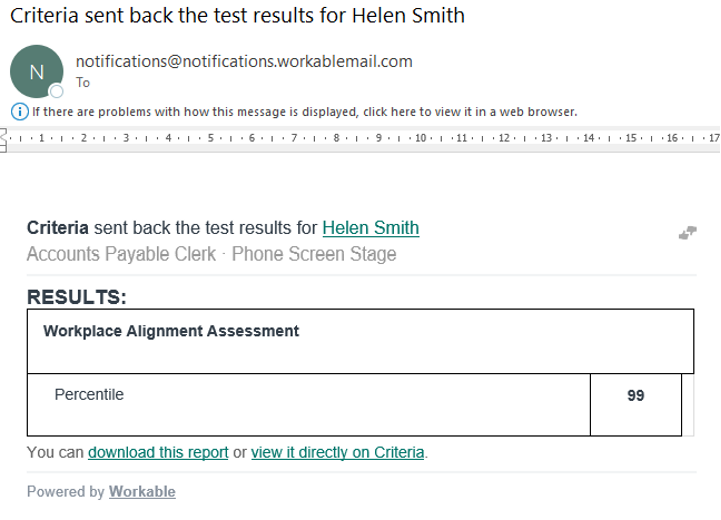
Once the candidate completes the assessments, the Workable users who follow the candidate will receive an email notification. If the Criteria users have completion notifications enabled in Criteria, an email will also be sent from Criteria. In the completion email from Workable:
- View the scores returned to Workable in the Results table (this table will not be shown if there are a lot of score fields).
- Click view it directly on Criteria to view the Criteria score report in your chosen format - PDF or HTML.
- Click the candidate's name to view the candidate's details and results in Workable (you'll need to log in to Workable before the page will load).
Assessment results
The results will also be available on the candidate page in Workable. Navigate to the Review > Assessments tab to see this information. A heading will be displayed for each assessment the candidate completed, with the score breakdown below.
Graphic Rating
- Thumbs up for In Range
- Thumbs down for Out of Range
Star Rating
- 3 stars for In Range
- 1 star for Out of Range
Numeric Rating
- 7/10 for In Range
- 1/10 for Out of Range
Assessment results can also be viewed on Criteria by clicking the "View report on Criteria" option. This will open the Criteria score report in a new tab in your chosen format - PDF or HTML. This is a live link that shows the current data from Criteria whenever it is clicked. If you use Score Ranges in Criteria, the Rating in Workable will also reflect whether the candidate met the score ranges or not.
If your report format is PDF, the Download report 1 link will also be shown. This will open in a new tab, and it is a copy of the Criteria PDF report that was saved in Workable when the results were posted. This is a static PDF that will not change if something changes within Criteria.
Video interview results
When a package including a Video Interview is completed, results will not appear in Workable’s assessments tab yet. Workable only accepts results once, so results are sent only after the Video Interview has a score.
To track evaluation progress or view assessment scores before completion, use Status change or Custom Field functionality. Without these, there is no visibility into progress (candidate or evaluators) until the evaluation is complete.
With automated scoring, scores are available within minutes, while manual evaluations may take longer, so added visibility is recommended.
If an Evaluating pipeline stage is configured, the candidate is moved there once all candidate tasks are completed. If the Current Criteria Status is mapped to a Workable custom field, it will display Evaluation in Progress and show the number of pending evaluators.
You may also choose to map a few other custom fields that will be helpful at this stage of the process.
- Evaluation URL - a link for the evaluator to click in Workable to complete their evaluation
- Talent Signal, Met Score Ranges, Score Report and other specific Assessment score fields - if you are using Video Interview and Assessments in the same package, you can display the scores and report relevant to the Assessments at this stage.
Once the minimum number of evaluations is complete, and a Video interview score is available, the results will be sent to Workable.
Deactivating the integration
To disable the integration with Criteria, you will need to navigate to the Integrations > Apps and:
- Go to the Assessment Providers section.
- If you are a Criteria (USA) customer, select Criteria. If you are a Criteria Australia customer, select Criteria Australia. If you cannot see the correct assessment provider for your region, please contact Criteria.

- Click the Disable integration link.
FAQs
- What happens if an extra VI/LI evaluator completes?
-
Once the minimum number of structured interview evaluations is completed, results are pushed to Workable only once.
Any additional evaluations will not update the Assessments area or the saved PDF, as both reflect the original snapshot. However, the live Criteria report link and any mapped custom fields in Workable will update to include the additional evaluations.